
Purpose
To allow users in your Microsoft 365 / Entra ID tenant to sign in to CyberLearn using SSO, a Global Administrator must first approve (admin consent) the permissions CyberLearn requests.
Step-by-step
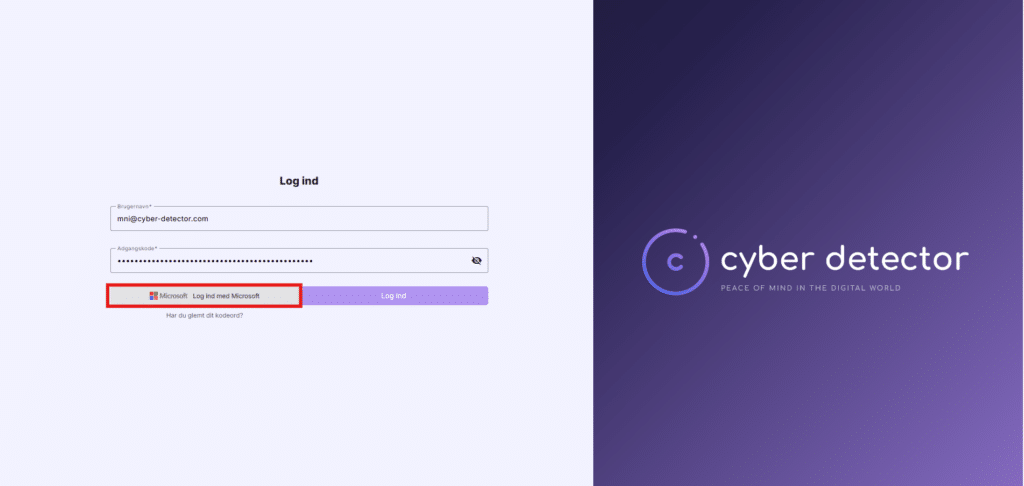
1) Open CyberLearn and choose “Sign in with SSO”
Action: Go to the CyberLearn login page and click “Sign in with Microsoft / SSO”.
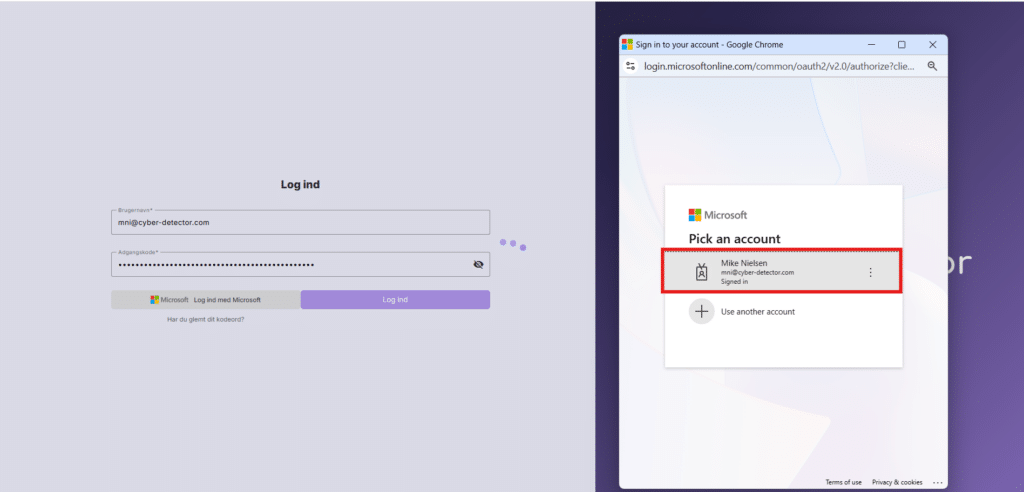
2) Sign in using a Global Admin account from your tenant
Action: When the Microsoft sign-in window appears, sign in with a user who is a Global Administrator in your Entra ID tenant.
Important: This must be an account from your own tenant (not an external account).
3) Accept the requested permissions
Action: Microsoft will display a permissions (consent) screen. Click Accept / Approve to grant the requested access.
4) If the Global Admin user does not exist in CyberLearn
Explanation: It’s completely normal that the Global Admin account won’t be signed into CyberLearn if that user does not exist as a user in CyberLearn.
That’s fine — the purpose of this step is only to grant the tenant-wide permissions.
5) Test: Regular users can now sign in with SSO
Action: After admin consent is granted, users in the tenant can sign in with SSO as long as their user exists in CyberLearn (and has access).
Quick troubleshooting (optional)
- No consent screen appears: The permissions may already have been approved earlier.
- A user still can’t sign in after consent: Verify the user exists in CyberLearn and has the correct access/role.
- Consent requires admin rights: Make sure the account used is a Global Administrator (not just another admin role).