
Add Internal and External Spoofed Sender Allow Entries in Microsoft Defender
To ensure reliable delivery of CyberLearn phishing simulation emails, we recommend adding both an Internal and External spoofed sender allow entry in Microsoft Defender.
This prevents our simulation emails from appearing in Microsoft Defender Spoof Intelligence, significantly reducing false positives and unnecessary alerts.
How to do it
Microsoft provides an official guide on how to create a spoofed sender allow entry.
Microsoft documentation link here.
When creating each allow entry:
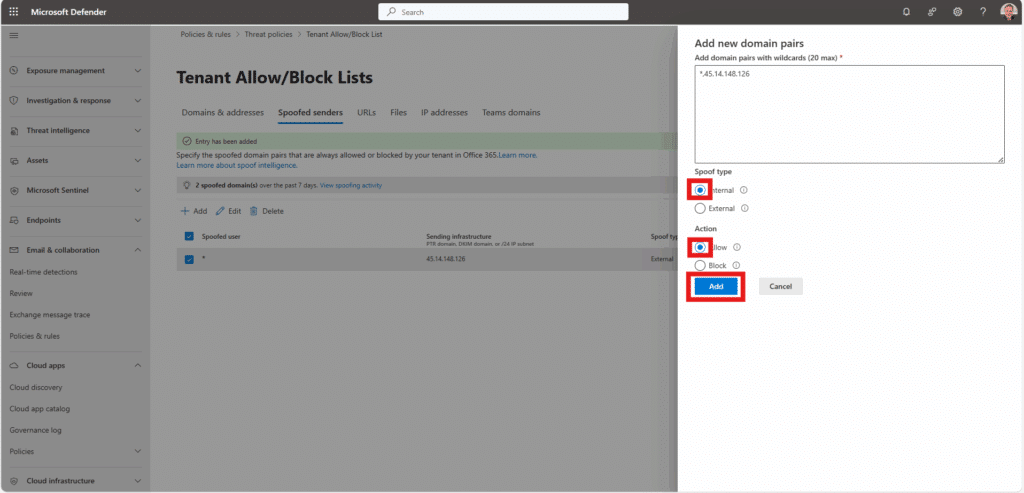
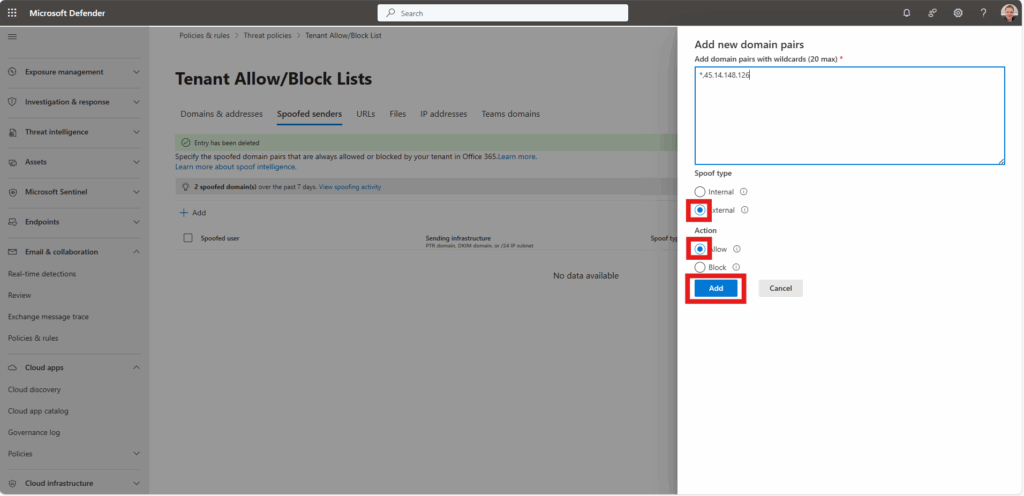
- Add a wildcard (*) followed by our IP address
(see the examples in the images below). *,45.14.148.126 - Under Spoof type, create:
- One Internal domain pair
- One External domain pair
Once both entries have been added, your configuration should look similar to the examples below.
Internal spoofed sender
External spoofed sender
After completing the setup
Once you’ve finished these steps, we recommend running a test phishing campaign to a small group of recipients.
This ensures that the simulated phishing emails are successfully delivered to the inbox without being blocked or flagged.
You can follow the instructions in our article: Creating a Test Phishing Campaign.