
How to Whitelist in Microsoft Defender
Follow the steps below to whitelist CyberLearn in Microsoft Defender before running your phishing simulation.
Configuring your phishing simulation in Defender
- Go to Microsoft Defender and sign in.

2. Click Email & collaboration in the left-hand menu, then select Policies & rules.

3. In the Threat policies section, click Advanced delivery to open the configuration page
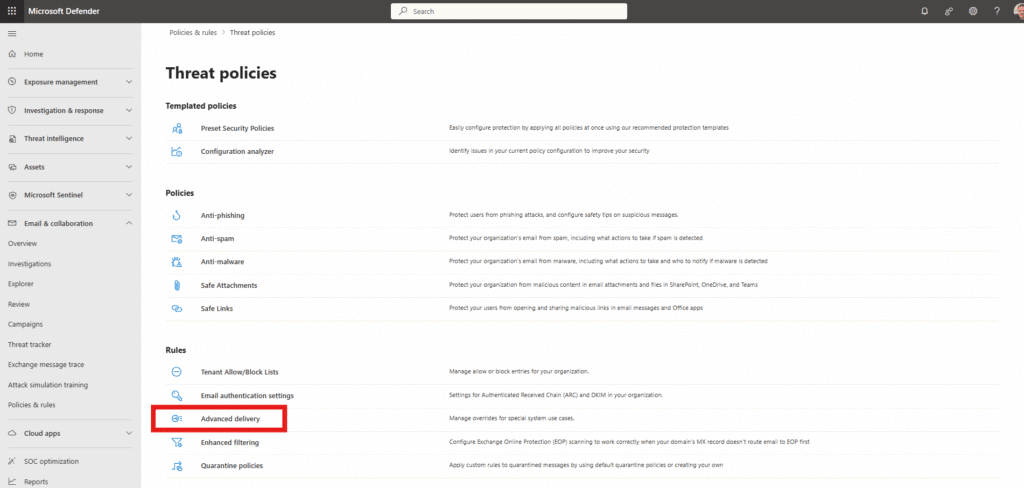
4. Click on the “Phishing simulation” tab to access the configuration settings.
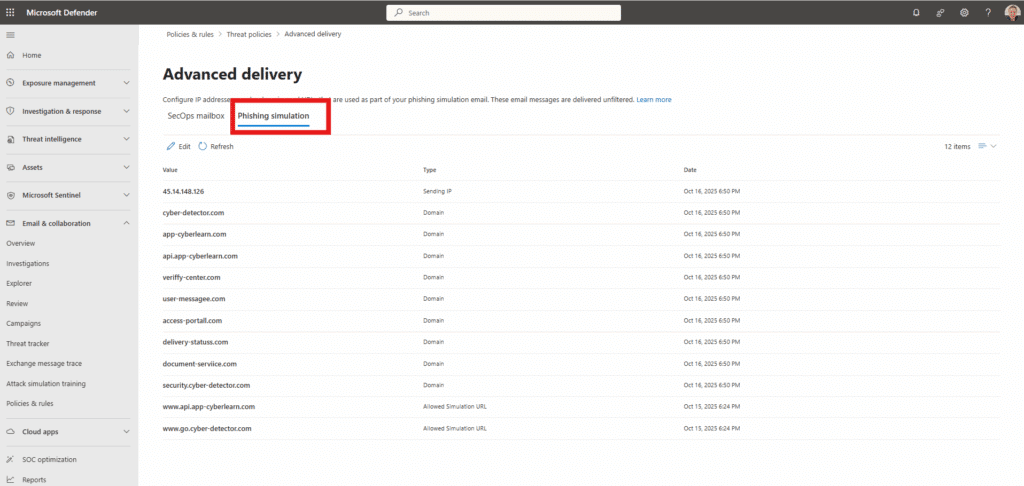
Adding the CyberLearn Simulation Domains and IPs
5. Click Edit, then expand the Domain section.
Here you need to enter the domains assigned to your phishing simulations.
Please add the following:
Domains:
cyber-detector.com
cyberlearn.cyber-detector.com
bnc3.cyber-detector.com
app-cyberlearn.com
api.app-cyberlearn.com
veriffy-center.com
user-messagee.com
access-portall.com
delivery-statuss.com
document-serviice.com
security.cyber-detector.com
6. Next, expand the Sending IP section and add the following IP address: 45.14.148.126
7. Finally, expand the Simulation URL section and add the following allowed URLs:
www.api.app-cyberlearn.com
www.go.cyber-detector.com
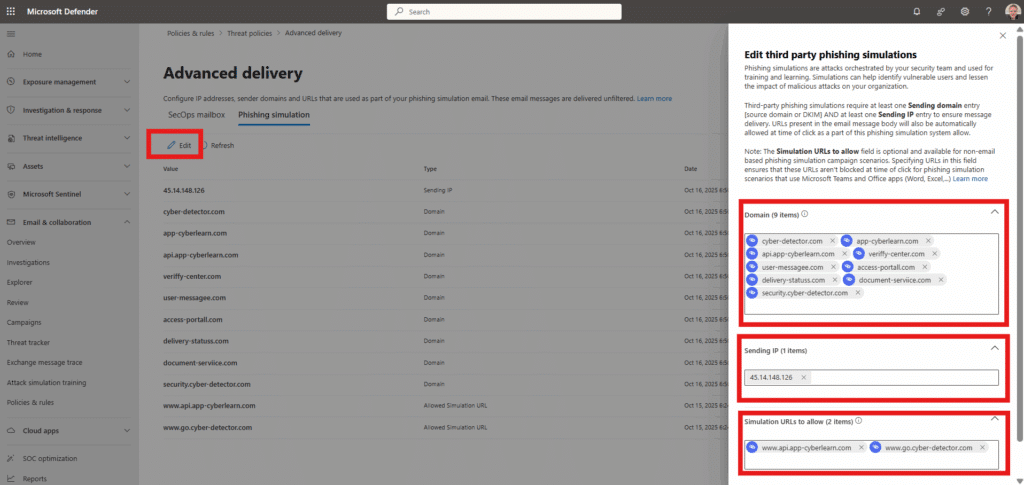
8. When you’re done, click Save, and then choose Close to apply the changes.

1. To add the IP addresses, open your Connection filter policy in Microsoft Defender and sign in to your account.
2. Click Email & collaboration in the left-hand menu, then select Policies & rules.
3. In the Threat policies section, click Anti-spam policies to open the configuration page.
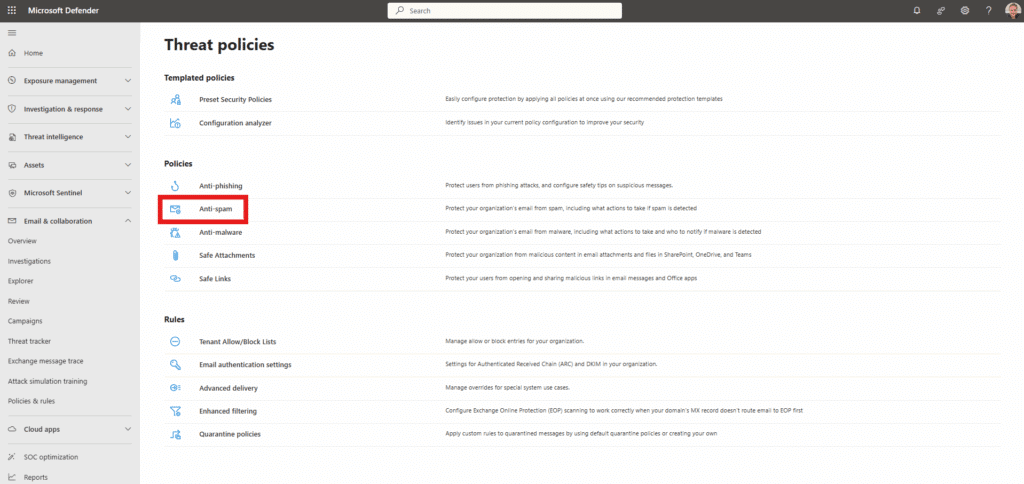
4. Navigate to Connection filter policy to manage allowed IP addresses.
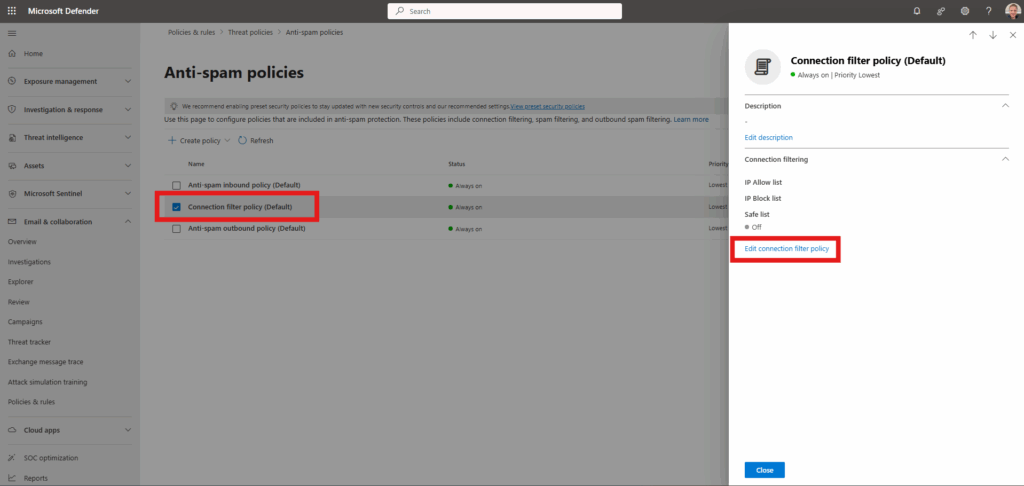
5. Select Edit connection filter policy, and under Always allow messages from the following IP addresses or address range, add the IP addresses listed below.
– 45.14.148.126
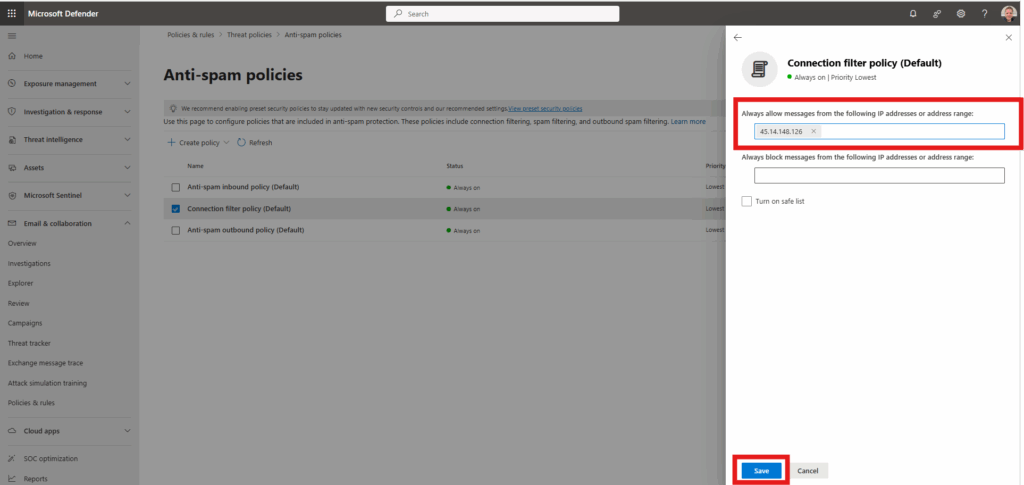
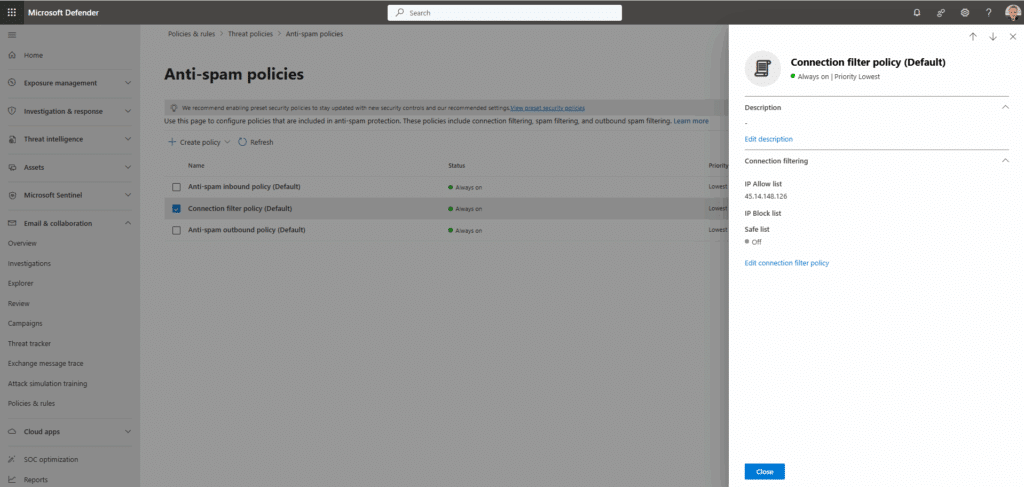
Verify that the Connection filter policy is enabled, and click Save to apply your changes.
Step 2
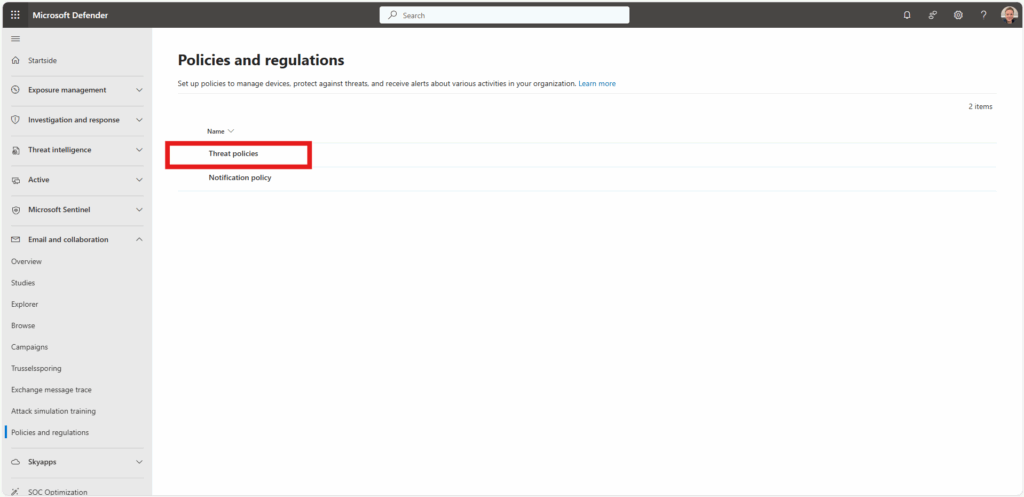
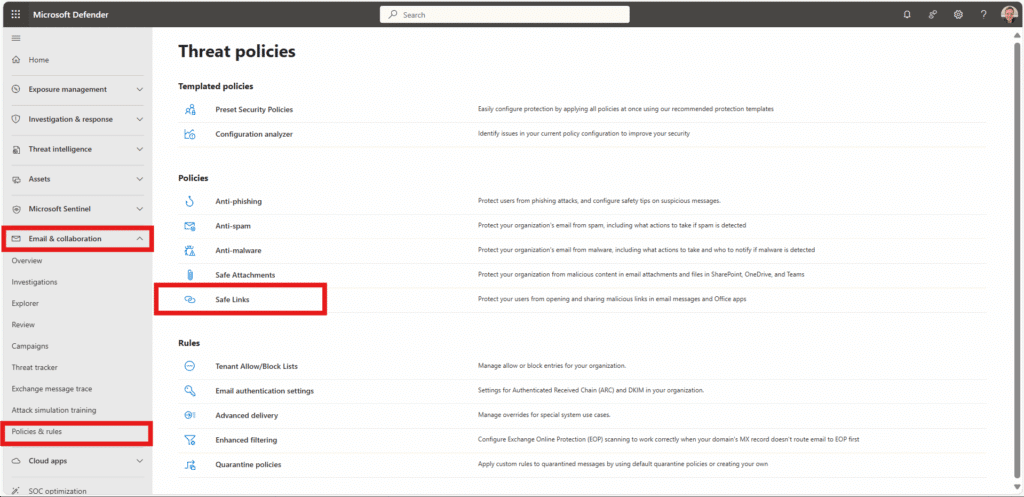
1. Click Email & collaboration in the left-hand menu, then select Policies & rules.
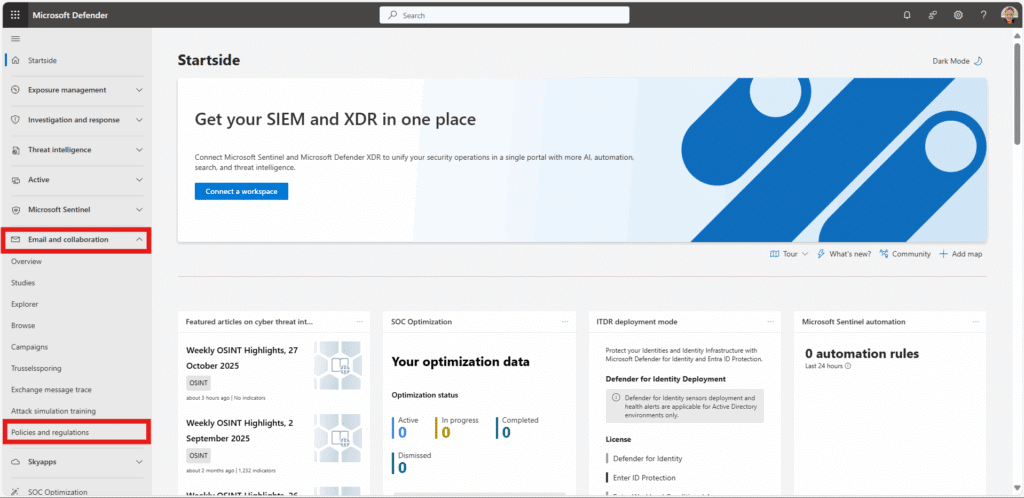
2. Click on Threat policies section
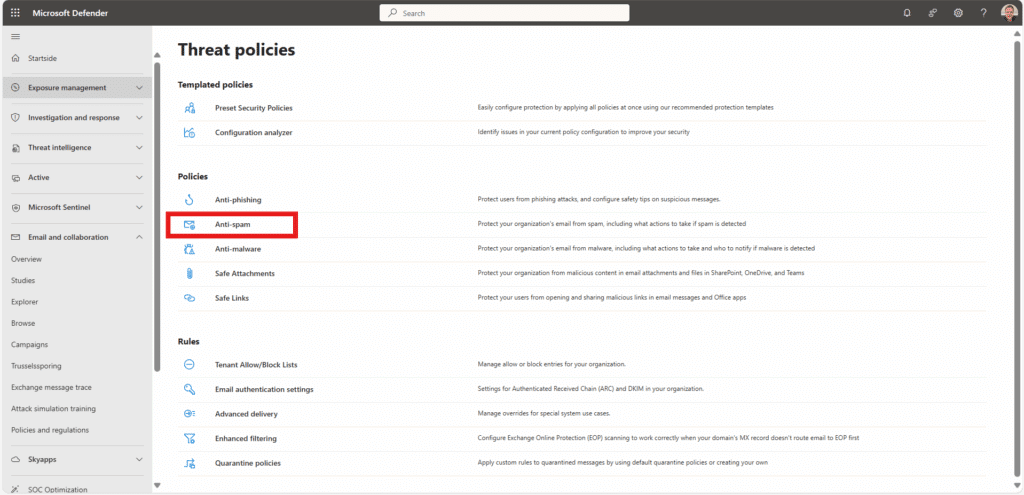
3. Click on Anti-spam
4. Click on Anti-spam inbound policy (standard) & allow senders
Add senders:
*@cyber-detector.com
*@cyberlearn.cyber-detector.com
*@app-cyberlearn.com
*@api.app-cyberlearn.com
*@veriffy-center.com
*@user-messagee.com
*@access-portall.com
*@delivery-statuss.com
*@document-serviice.com
*@bnc3.cyber-detector.com
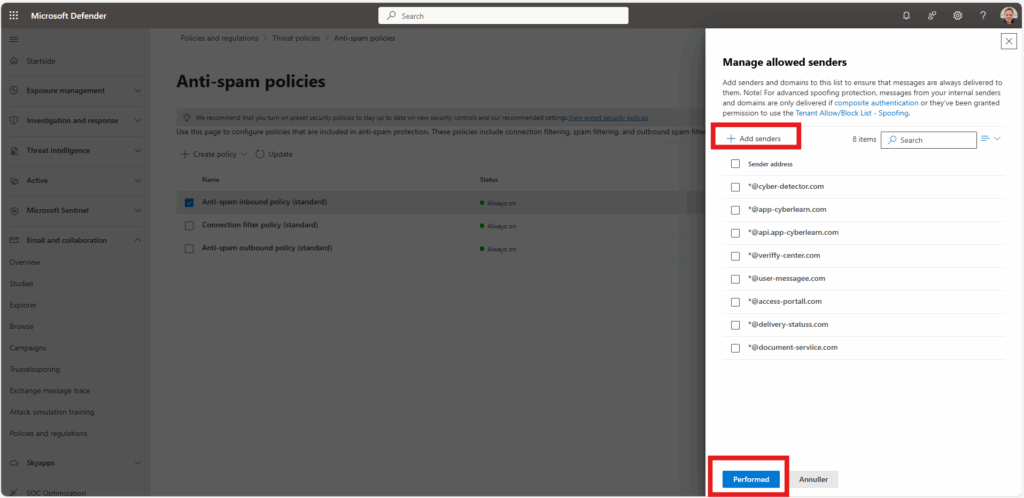
5. Click Gem

Step 3
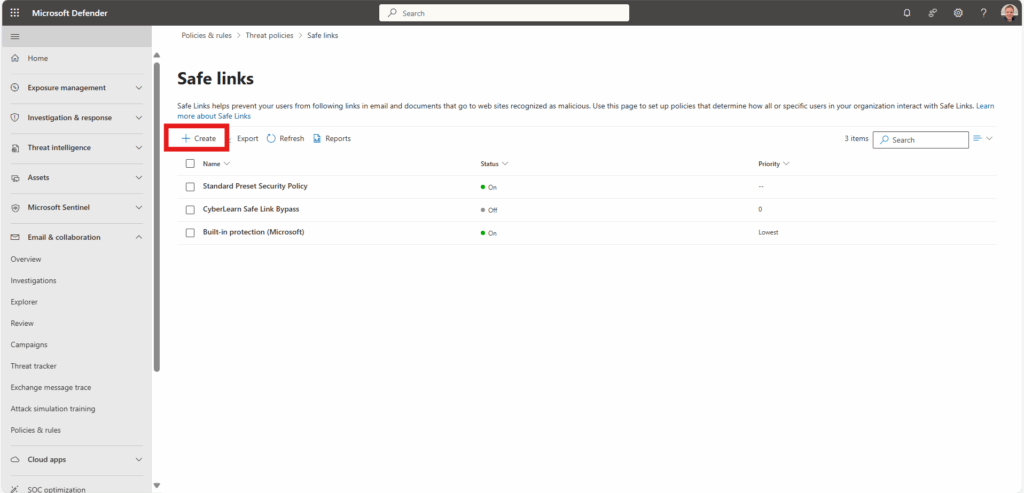
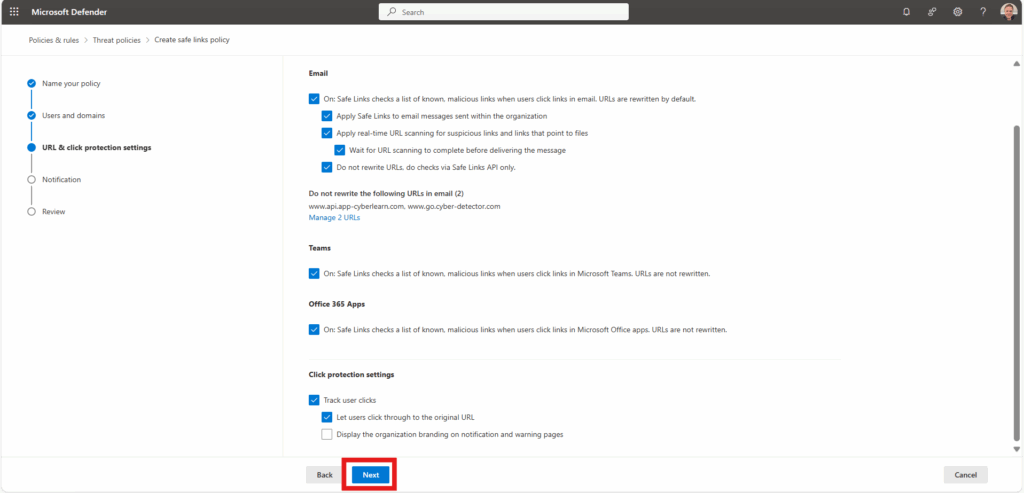
- Click on Safe Links
2. Click on “Create”
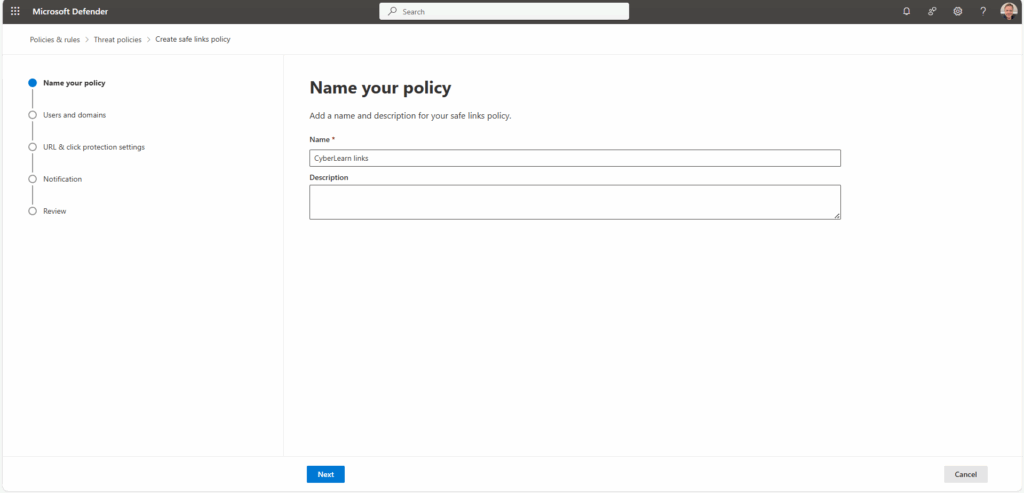
3. Type “CyberLearn links” and Next
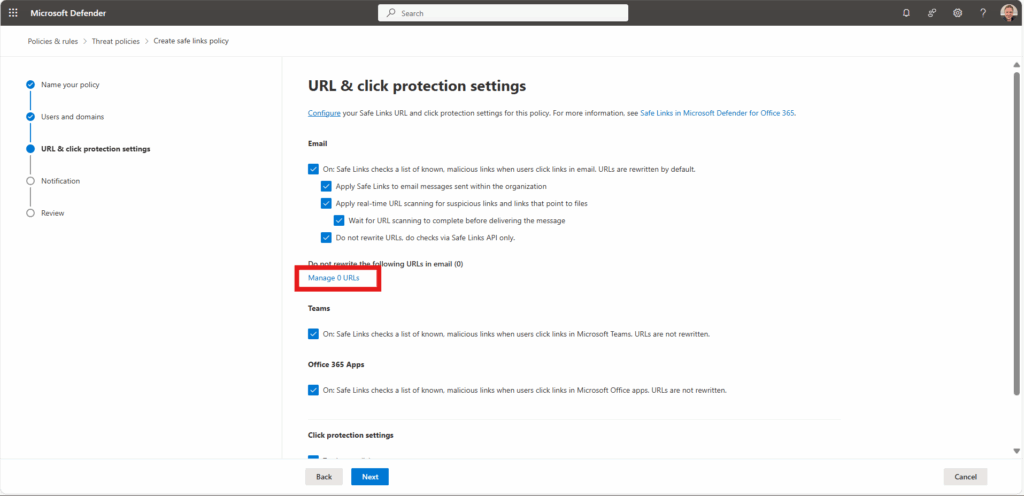
4. Click Next

5. Click on “Manage URL’s”
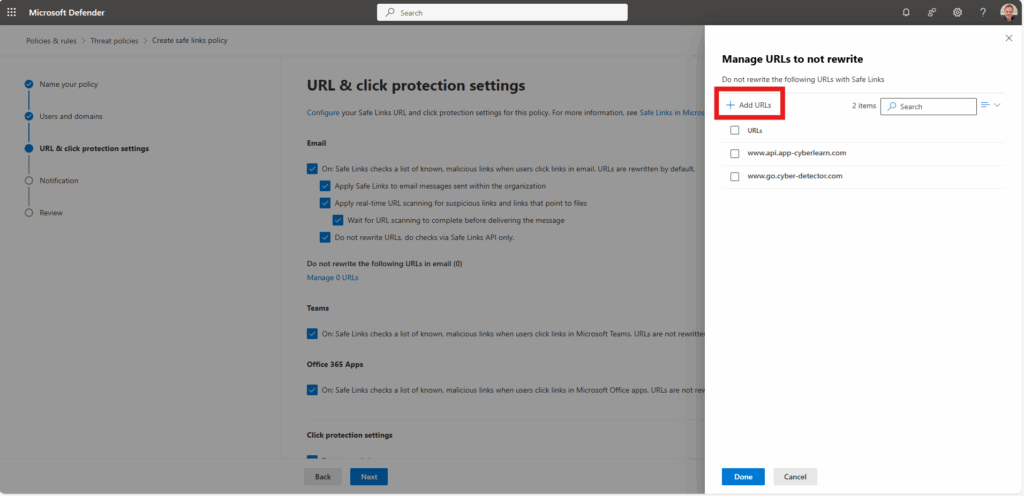
6. Click on “Add URL’s” and type:
www.api.app-cyberlearn.com/*
www.go.cyber-detector.com/*
7. Click “Next” all the way and “Submit”
Step 4
Force delivery of CyberLearn emails to Focused Inbox
Why this matters:
The Focused Inbox feature in Microsoft 365 automatically analyzes inbound emails and splits them between Focused and Other. To ensure CyberLearn training messages always arrive in the Focused tab, we explicitly mark them as trusted and exempt from content evaluation.
Step-by-step setup
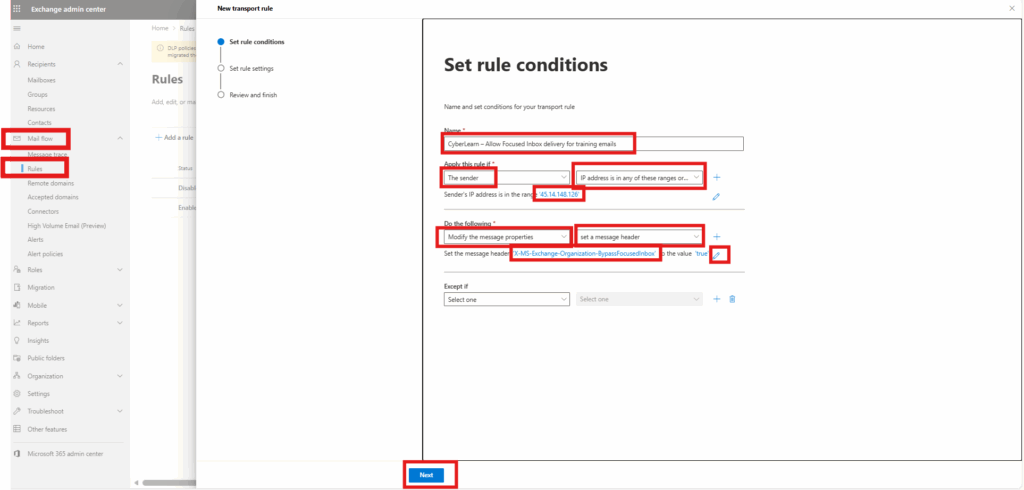
1. Log in to the Exchange admin panel in Exchange Admin Center.
2. Navigate in the left menu to: Mail flow → Rules
3. Click: + Add a rule → Create a new rule
4. Name the rule clearly and purposefully, for example:
CyberLearn – Allow Focused Inbox delivery for training emails
5. Under Apply this rule if… select:
- The sender… → IP address is in any of these ranges or exactly matches
6. Add the trusted sender IP used by your CyberLearn training dispatch:
45.14.148.126
Click Add → Save
7. Under Do the following, choose:
- Modify the message properties… → Set a message header
8. In the header name field, enter precisely (case-sensitive):
X-MS-Exchange-Organization-BypassFocusedInbox
9. Set the value field to (also case-sensitive):
true
Click Save
10. In Rule settings, set the rule to:
- Enforce (ensures the exemption is always applied)
Click Next
11. Review the configuration and confirm by clicking:
- Finish
Result
Your organization has now explicitly instructed Exchange Online to bypass Focused Inbox filtering for all CyberLearn training emails sent from this IP. This ensures consistent delivery, higher visibility and improved engagement with security awareness training.Test the Whitelisting
Now we’ll make sure that your whitelisting setup works correctly and that your simulated phishing emails can be delivered to your inbox.
Follow these steps:
- Log in to the CyberLearn platform.
- Go to Phishing → Library.
- Choose any template from the library that you would like to test.
- Click on the template
- Select the person/department
- Check your email inbox to confirm that the message was delivered.
If you don’t receive the test email, please review the whitelisting process again to make sure no steps were missed.
After receiving the test email, verify that:
- The email is delivered correctly to your inbox.
- The link inside the email works and is not blocked by link protection or Safe Links.
If both points are confirmed, your configuration is complete.
Troubleshooting – What if the email wasn’t delivered correctly?
If the test email failed to deliver, go back and review the whitelisting guide above. Carefully go through each step to ensure everything has been configured correctly.
It’s quite common to miss a small step or to enter an incorrect domain, IP address, or URL — double-check these details.
In most cases, the issue occurs because the email was blocked by one of your security systems. Try to identify which system stopped the message and where it was blocked.
Also consider whether you have additional email security tools (such as third-party gateways or filters) that may also require whitelisting.
If you still experience issues contact support. They’ll guide you through the process, but it’s also important to involve your IT administrator, who knows your email security setup best.
If you’re unable to identify the cause of the delivery issue, you can alternatively set up a mail connector in Microsoft 365 to ensure smooth delivery of phishing simulations.