
CyberLearn – Outlook “Report” Add-in Setup Guide (Microsoft 365)
This guide shows how to deploy the “Report to CyberLearn” add-in across your organization and (optionally) route real phishing reports into Microsoft Defender / SecOps.
What do you get?
- When users click “Report to CyberLearn” in Outlook, simulated phishing emails are registered correctly in CyberLearn.
- Real phishing emails can (optionally) be forwarded to your SecOps / Microsoft Defender flow for review.
Prerequisites (Important)
- You need a user with Microsoft 365 admin privileges to install the add-in (typically Global Admin or Office Apps Admin).
- You need an Entra ID admin (typically Global Admin) to grant admin consent.
- It may take some time before the add-in appears in all Outlook clients (normal M365 rollout/cache behavior).
1) Find your Tenant ID (Microsoft 365 / Entra)
Your Tenant ID is required in the consent link.
How to find the Tenant ID
- Go to the Entra admin center.
- Navigate to Entra ID → Overview.
- Copy Tenant ID (Directory ID).
2) Deploy the CyberLearn add-in in Microsoft 365 Admin Center
Goal: Deploy the add-in to the entire organization (recommended) or to specific users/groups for testing.
- Sign in to the Microsoft 365 admin center.
- Go to Settings → Integrated apps.
- Select Add-ins → Deploy Add-in / Upload custom apps.
- Choose Provide a link to the manifest file.
- Paste the manifest link and click Validate / Next.

Manifest link (copy the full URL):
https://app-cyberlearn.com/outlook/cyberlearn-report-manifest.xml
Choose who gets the add-in:
- Entire organization (recommended)
- Specific users/groups (for a smaller pilot test)
Tip: If you want to test first, deploy to a test group. Once everything works, deploy to the entire organization.

3) Grant permissions (Admin Consent)
Goal: An Entra admin grants consent for the app’s permissions on behalf of the organization.
- Insert your Tenant ID into the consent link below (replace
<TENANT ID>). - Open the link in a browser and sign in as an Entra global admin.
- Approve the permissions.
Consent link (insert your Tenant ID):
https://login.microsoftonline.com/<TENANT ID>/adminconsent?client_id=6b69b6c4-f04c-4f46-8e26-3ab839f75269&redirect_uri=https%3A%2F%2Fapp-cyberlearn.com%2Foutlook%2Fconsent-complete.html
Important
- Do not use
commonin the consent link. Always use the customer’s specific Tenant ID. - After consent is granted, users can typically use the button without additional login prompts (depending on tenant policies).
4) Verify the add-in works for a user
- Open Outlook (Web or Desktop).
- Open an email.
- Find “Report to CyberLearn” and click it.
- You should see a confirmation, and the email will be handled according to your setup.
Optional: Send real phishing reports to Microsoft Defender (SecOps flow)
Purpose: When a user reports a real (non-simulated) phishing email, it can automatically be routed into your Microsoft Defender review flow so SecOps can triage quickly.
Prerequisites
- You have (or create) a shared mailbox for SecOps, e.g.
secops@company.com - You have access to Microsoft Defender portal (
security.microsoft.com)
A) Create a shared mailbox (if you don’t already have one)
- In Microsoft 365 admin center, create a Shared mailbox (commonly under Exchange / Mailboxes).
- Grant relevant SecOps users access to the mailbox.

B) Add the SecOps mailbox in Microsoft Defender “Advanced delivery”
- Go to Microsoft Defender portal:
security.microsoft.com - Navigate to: Email & collaboration → Policies & rules → Threat policies → Advanced delivery
- Under SecOps mailboxes, select Add and add your shared mailbox.

C) Configure “User reported settings” to deliver reports to the mailbox
- In Microsoft Defender portal, go to: Settings → Email & collaboration → User reported settings

- Find Reported message destinations.
- Add/assign your shared mailbox as the destination (so reports land in one place for review).
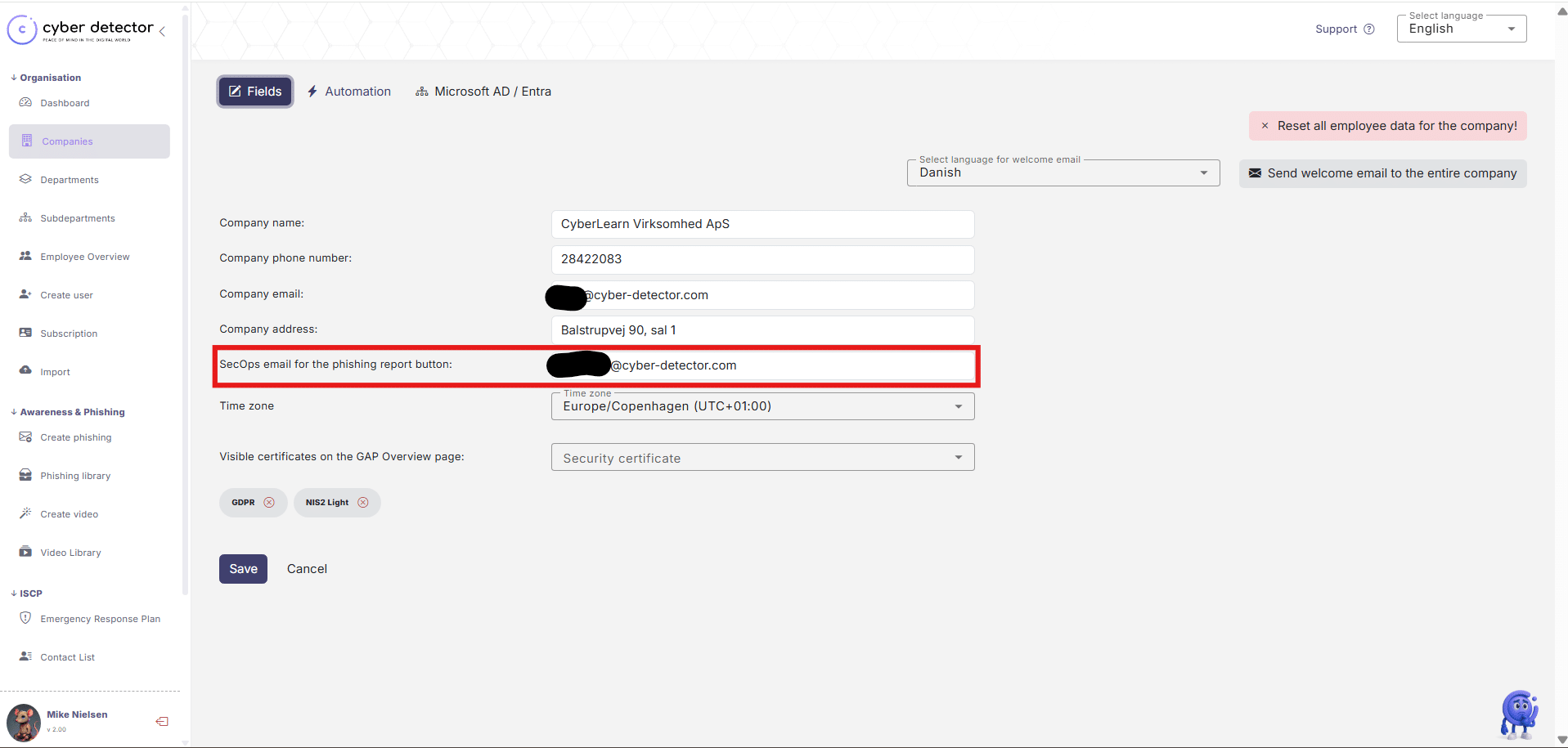
E) Review in Defender
Once configured, SecOps can review user reports here:
Microsoft Defender → Submissions → User reported

Troubleshooting (Fast checks)
- Admin consent was not granted
→ Use the consent link again with the customer’s Tenant ID. - Add-in is deployed but not visible in Outlook yet
→ Wait a bit, try Outlook Web, or test with another user/group. - Insufficient privileges / Graph 403
→ Consent is missing/incorrect for the tenant, or delegated permissions weren’t admin-consented.